Kagi's media search goes well beyond a grid of thumbnails. Between AI-image filters, clickbait controls, reverse lookup, and source filters, there's a lot of power tucked behind the Images and Videos tabs. Here's how to get the most out of them.
Quick access: Bangs and lenses
Before diving into filters, two shortcuts (via bangs) will speed up everything else:
!i<query> jumps straight to Kagi Images!v<query> jumps straight to Kagi Videos
You can also use Lenses to scope any search to specific sites or parameters, handy for carving out a "stock photo sources only" or "indie video platforms only".
Image search pro tips
As AI-generated imagery floods search results across the web, Kagi gives you the controls to decide how much of it you actually want to see. Kagi's AI images filter gives you three ways to handle results:
- Any: the default; all images appear but AI-generated ones are downranked
- None: AI-generated results are excluded entirely
- Only: show only AI-generated images
Prefer operators? Drop ai:none or ai:only directly into your query to get the same effect without touching settings.
There's also a global toggle under AI Search Settings labeled Exclude AI-generated images and videos if you want this to be your permanent default:
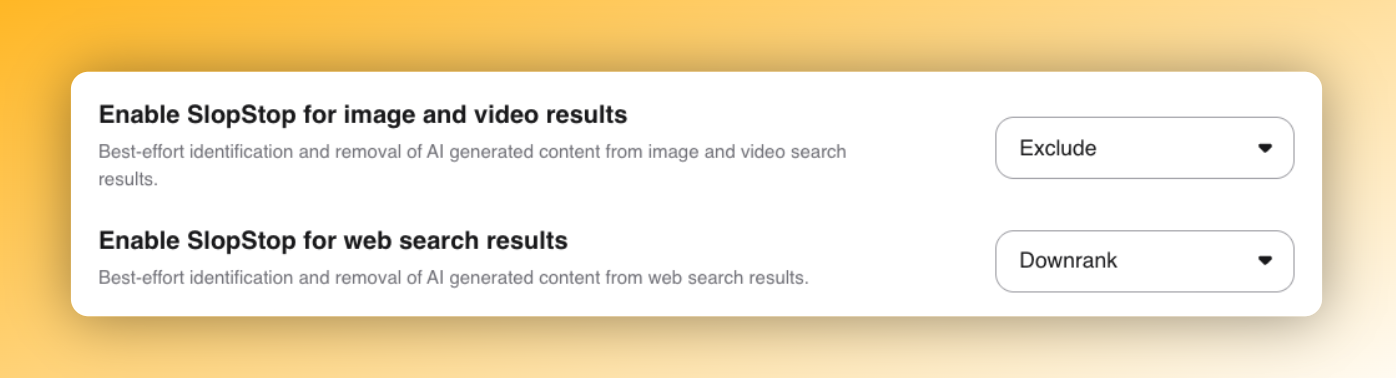
If something slips through, click the shield icon on any image result to block or downrank the source - the same personalization mechanics you already use in web search:
Report slop with SlopStop
Spotted obvious AI slop in your image or video results? Click the shield icon next to the result to report it to SlopStop, Kagi's community-driven AI slop detection system. Reports are verified alongside Kagi's own signals, and once a domain or channel is confirmed to primarily publish AI content, it gets deprioritized across Kagi Search for everyone.
Find vector graphics fast
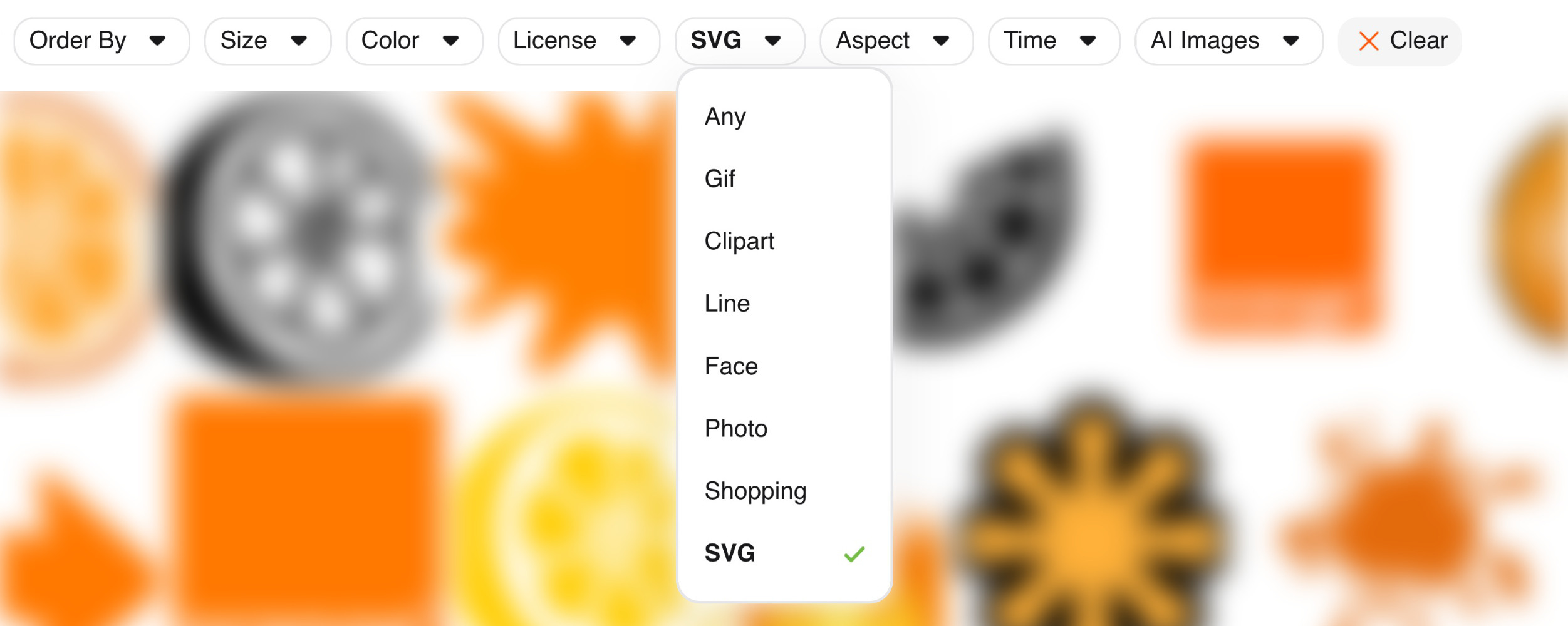
Looking for icons, logos, or illustrations? Use the SVG filter to restrict results to vector graphics only, a huge time-saver for designers who don't want to wade through JPEGs.
Reverse image lookup
Kagi has a built-in reverse image search. Click the camera icon in the Images interface to upload a file or paste an image URL:
You'll have additional options to filter by match type: any, identical, similar.
Video search pro tips
Kagi's video search is built to defuse the worst habits of the modern video browsing, starting with killing clickbait:
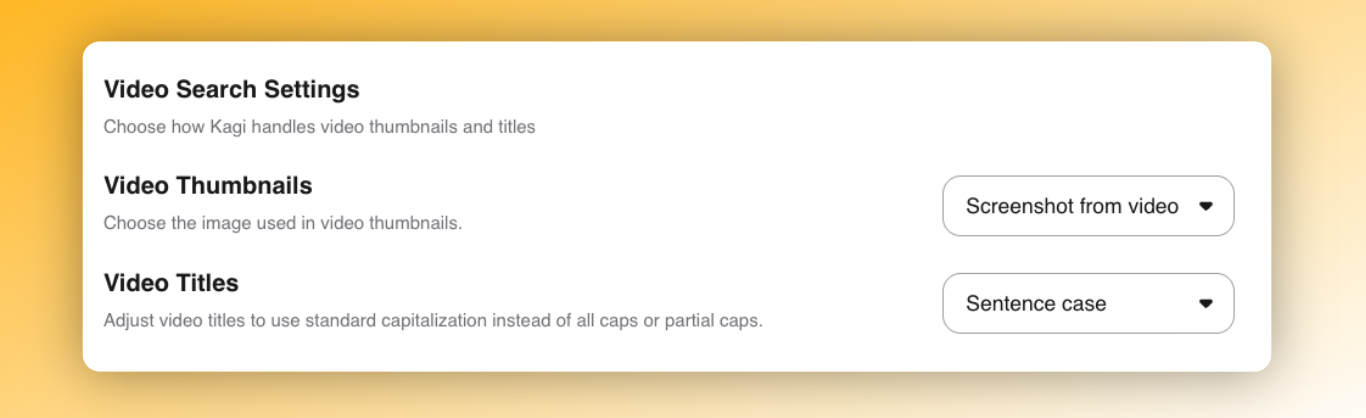
- Thumbnail replacement: Swap out misleading, face-stretched thumbnails for an actual frame from the video. You can even opt for a random screenshot if you want something unbiased.
- Title normalization: Force video titles into title case or lowercase so ALL CAPS RAGE-BAIT stops shouting at you.
You can adjust these in your general settings:
Tune your channel signal
Channel or creator frequency adjustment: Using the shield icon, dial how often a particular creator appears in your results, from "more please" to "never again."

This signals back into future searches so results drift toward what you actually care about.
Sources and filters
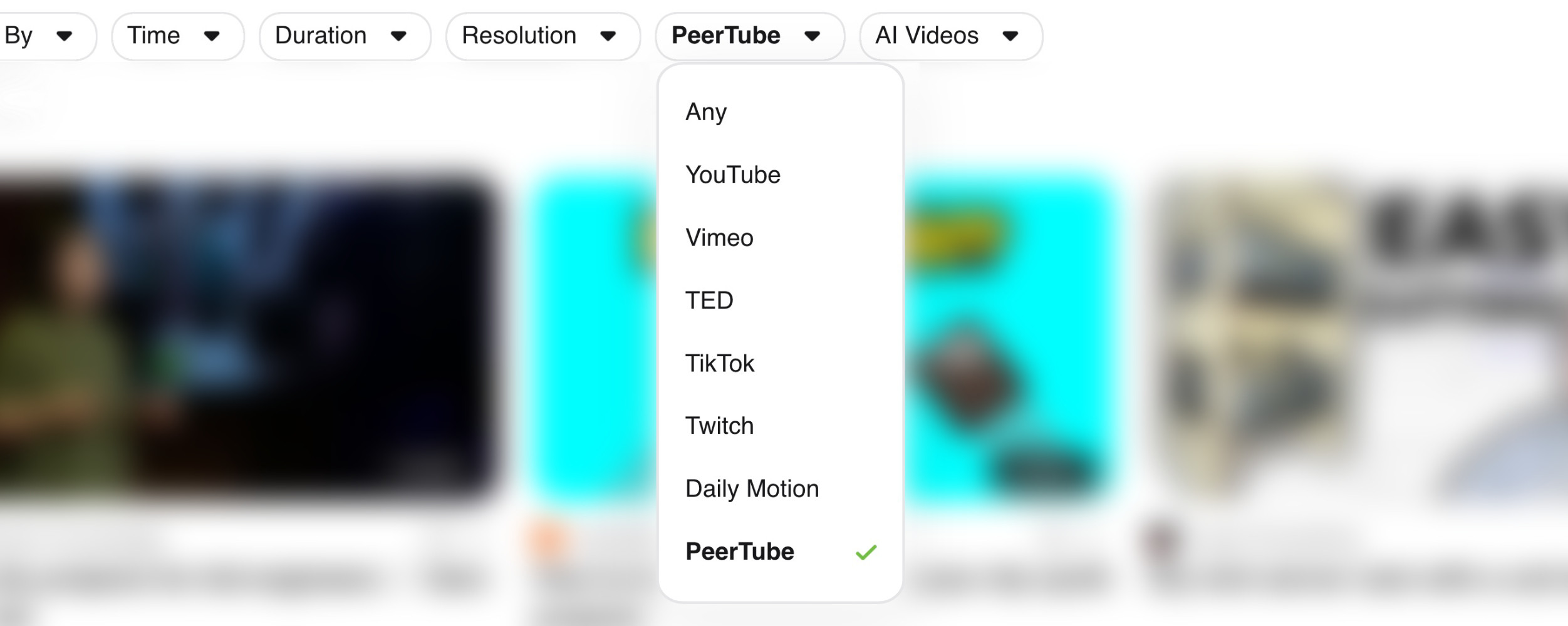
Need only TikToks (or need to avoid them)? You can adjust these with source filters to limit results to specific platforms:
What users are saying
"I couldn't find this on YouTube, but kagi did." - 7leaguebootdisk
"It's is genuinely insane that the same keywords typed into Kagi when looking for a YouTube video just work when YouTube's search itself will serve me complete garbage." - Damien
"I've found the video search is so much better since YouTube removed search filter options to force their algo." - Birdpoof
Customizations that make media search yours again
Whether you're hunting down a vector logo, tracing the origin of an image, or just trying to escape clickbait thumbnails, Kagi's Images and Videos tabs are built to put you back in control of what you see. Spend a few minutes dialing in your filters and personalization, and every media search after that will feel noticeably cleaner, faster, and more yours.