Researchers, students, and academics often spend more time filtering search results than actually reading them. That's where Kagi's Academic Lens comes in. It restricts results to scholarly and primary sources, so you're not fighting through generic results or unnecessary clutter to get to a relevant paper.
Here's what users have said about the utility of Kagi for research and academic purposes:
"As an academic researcher and teacher, academic lens is my life." - Timeless
"That lens might be the single reason I managed to write my thesis and graduate university." - Espi
"As a researcher it has made my job so much easier. The results it returns are soooo much more accurate." - Erin Biba
This post collects the tips we hear most often from researchers using Kagi every day.
Start with the Academic Lens
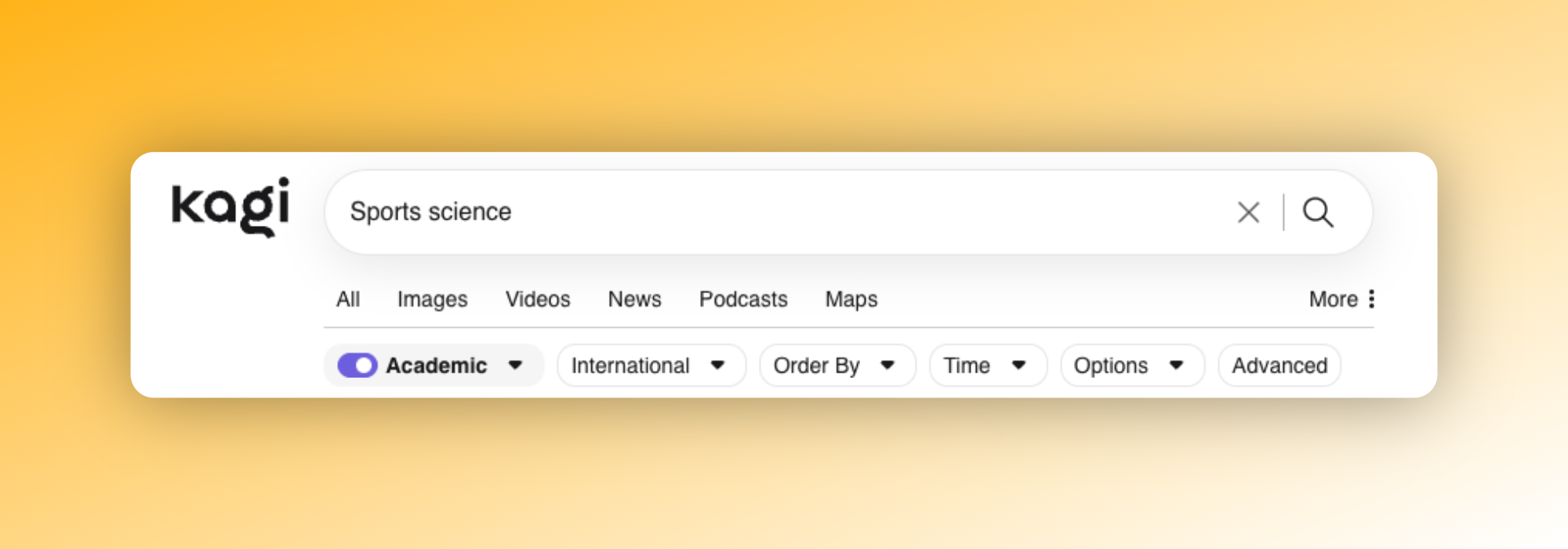
The built-in Academic lens restricts results to scholarly journals, university domains, and other professional sources, making it perfect for medicine, science, history, law, or any specialist field where you want to skip straight to the literature and most credible sources.
Heads-up: We've recently upgraded the Academic lens with big improvements, so be sure to give it a try!
Use the PDF Lens for primary sources
Much of the most valuable academic material (preprints, working papers, government reports, conference proceedings, or archival scans) lives in PDFs that mainstream search engines tend to bury. The PDF lens narrows results to PDF documents only, surfacing the source material directly instead of citation pages or summaries about it.
A useful pattern is combining the PDF Lens with a year range to find papers in your field from a particular period:
Another specific example is using it for syllabi, technical standards, or court filings where the canonical document is a PDF:
Personalize ranking with domain controls
Kagi lets you raise, lower, pin, or block any domain in your results. For academic work this means:
- Raise domains you trust (your favorite journals, an indispensable lab blog, a reliable archive).
- Lower content farms and aggregators that summarize papers without adding value.
- Block outright the sites you never want to see again.
Over time, your results converge on something genuinely yours and most relevant to your needs.
Filter out AI-generated slop
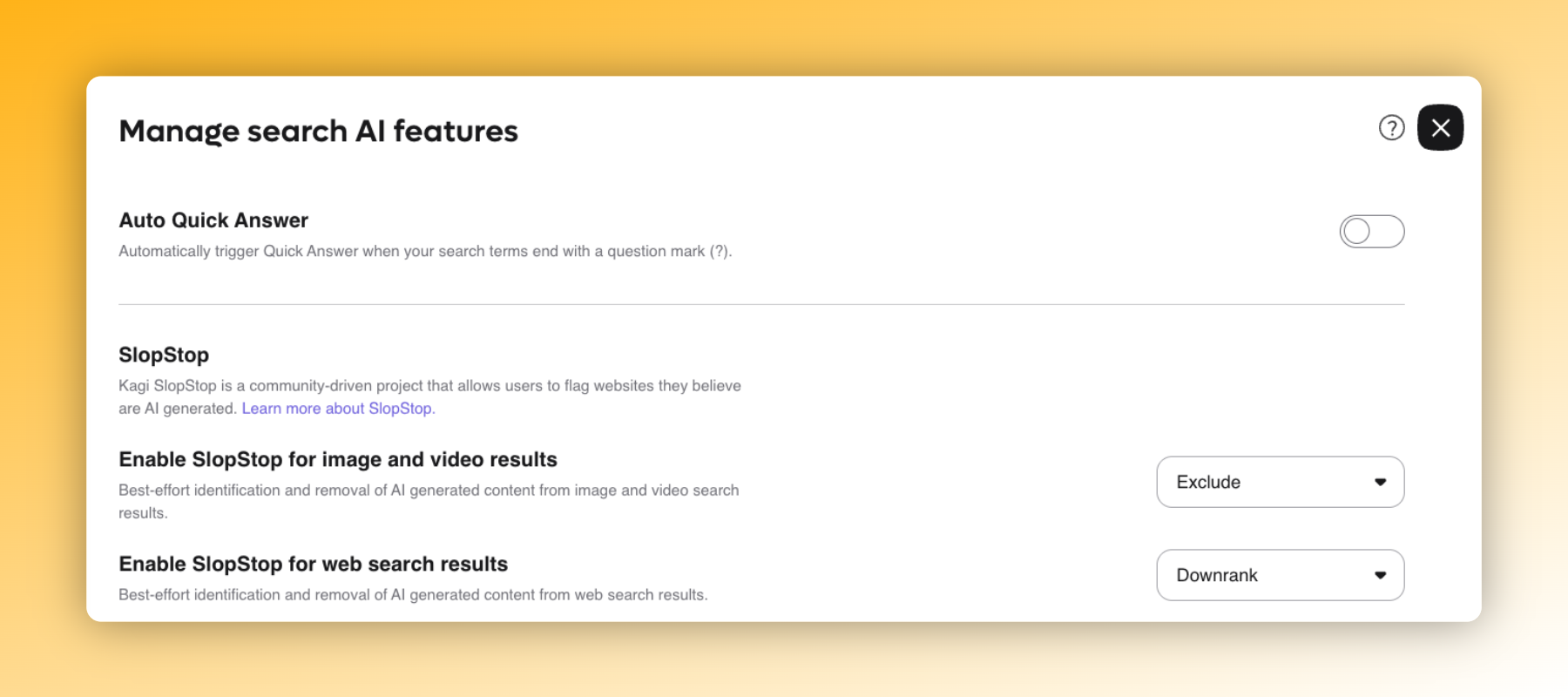
Search results, especially for image queries, are increasingly polluted by AI-generated content. Kagi includes a toggle to exclude AI-generated results and identifies AI-heavy pages in regular results. For visual research (historical photographs, anatomical diagrams, art history) this makes a big difference. You can learn more about Kagi's SlopStop initiative here.
Use the Summarizer for long documents
Using the Quick Actions menu, select the "Quick Summary" option to get a structured digest with key points. While not a replacement for reading the source, it's a fast way to decide whether a source is worth reading in full, or to surface the section you might actually need.
You can use the dedicated Summarizer to drop reports or a YouTube lecture as well. It's available as an app too, and here are tips on how to get the most out of it.
Using Kagi Assistants
Kagi Assistant does something useful for academics, journalists, and anyone who requires proper sourcing: instead of just footnoting its answers, it shows how much each source actually contributed to them.
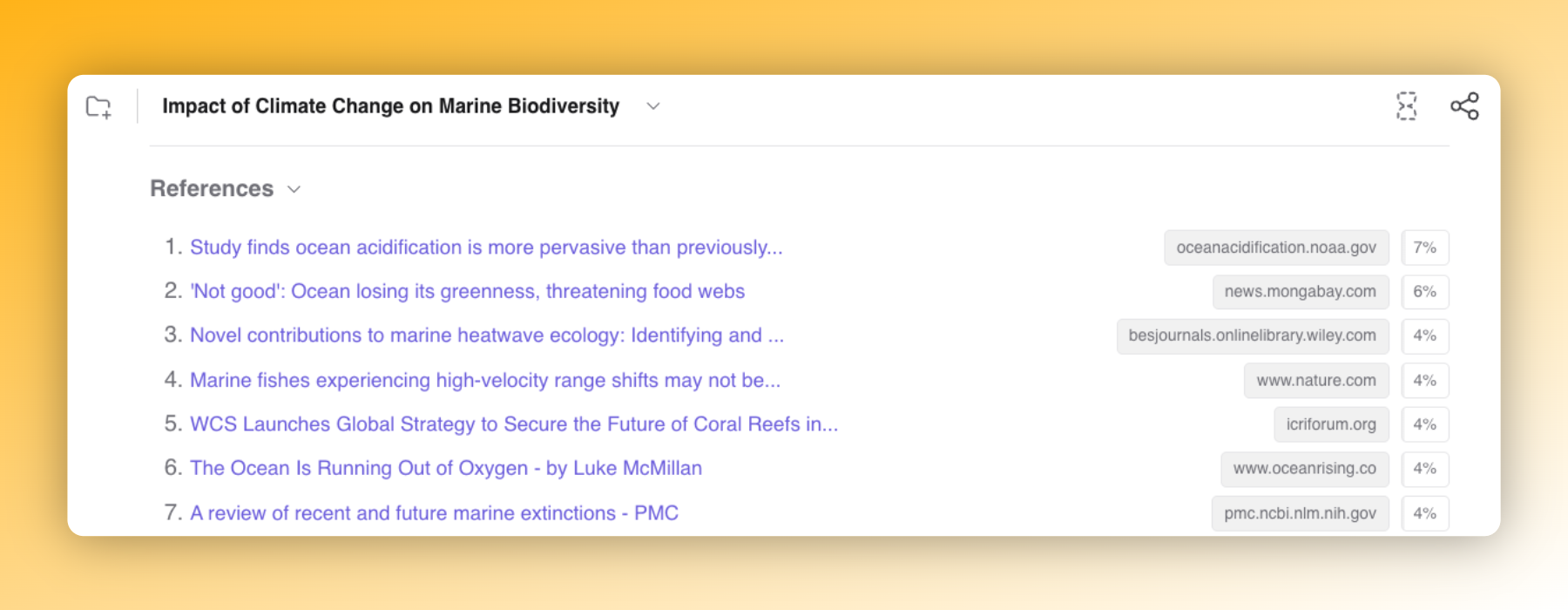
This transparency lets you see exactly where the reasoning came from so you can follow the most credible sources, dig deeper into the material, and form your own informed conclusions rather than simply taking the Assistant's word for it.
Kagi offers two assistants: the Quick Assistant, which optimizes for speed and delivers concise answers in under 5 seconds, and the Research Assistant, which focuses on depth and exhaustive analysis. Learn more about them in greater detail here.
Work across languages
For researchers working across languages, Kagi Translate gives researchers context-aware translation that preserves meaning, tone, and style. It supports over 248 languages and dialects and every format you're likely to need: text, documents, websites, voice, and images. It works exceptionally well for proofreading too:
Built for the way researchers actually work
We'll leave the last word to one of our users, Jared Gardner, a university professor: